
How to Write GIF Prompts for Images 2.6: Motion, Frames, and Loops
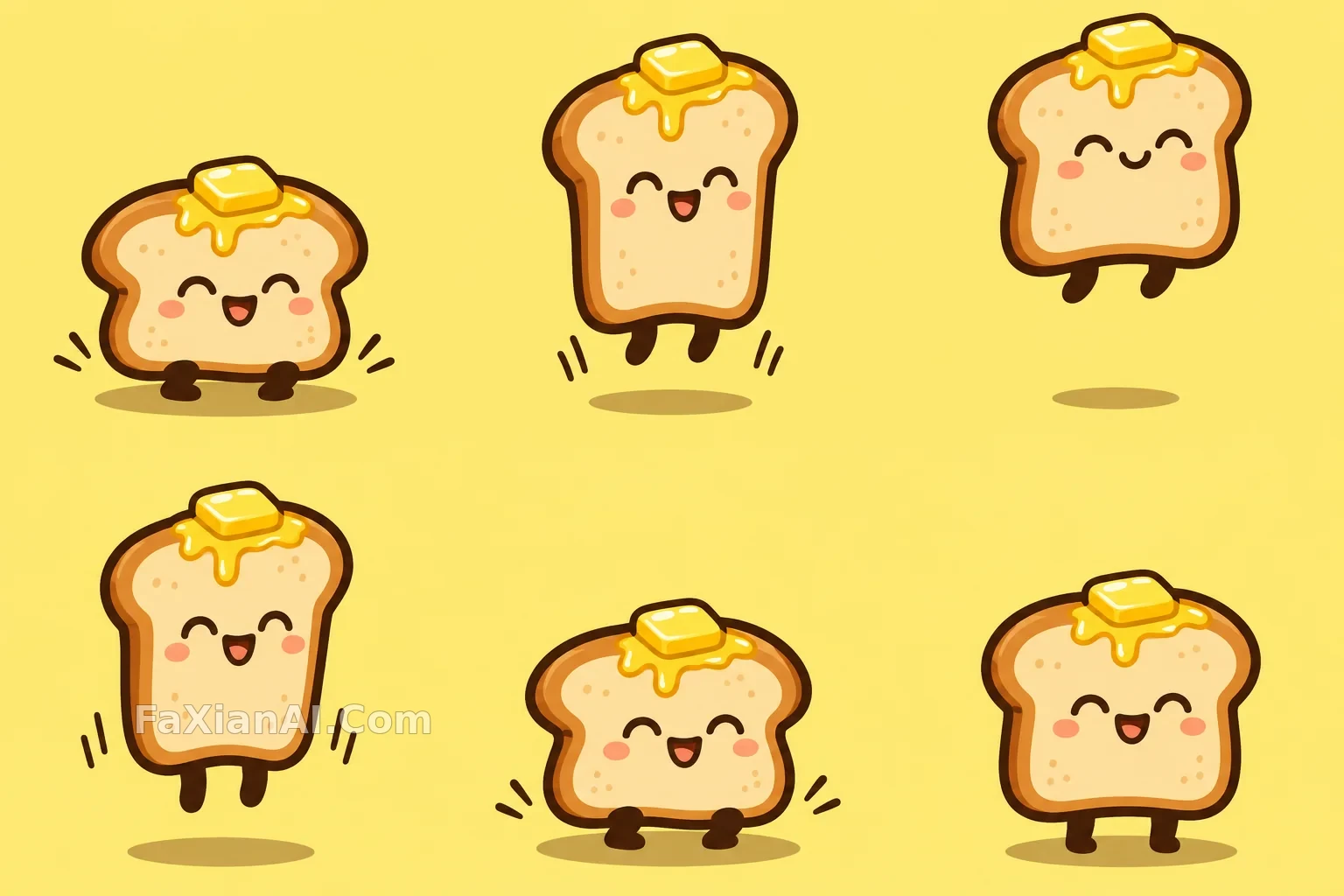
The biggest difference between making a GIF and making a still image is that you need to describe change, not just a single scene. The prompt for the toast below doesn’t just say “jump cutely”—it lists six poses.
Step 1: Decide What Stays Still
This is the most useful thing you can specify. The prompt for the cat seen from behind on a windowsill says the cat and windowsill must stay exactly the same size and in the same position; only the tail moves. The fewer things that move, the less flicker you get and the cleaner the loop.
These are good starting points for beginners, with a relatively low chance of failure:
- Move only one part: a tail, steam, or a blinking eye. See the coffee cup with only the steam moving.
- Move out and back: open and close, or raise a hand and lower it again. In the colored-pencil tulip, for example, frame 5 retraces frame 3.
- Use symmetrical rotation: three small spheres of the same color return to the same arrangement after a 120-degree turn, so you can use very few frames. Our first version used three different colors. The positions lined up after the turn, but the colors didn’t, so the loop had a noticeable jump.
Step 2: Break the Motion Into Frames
“Wave” is too vague. Replace it with “lowered, rising, raised high, tilted left, tilted right, lowered,” and the model knows what to draw in each frame. That’s how the yellow bean mascot prompt works.
For jumping and walking, borrow some time-tested animation principles. A jump has a preparation, takeoff, peak, descent, and landing, and the little frog even gets an extra ring of ripples when it lands. For a walk cycle, specify the ground line: the pixel knight’s feet all touch the same line, so they don’t appear to slide.
Step 3: Explicitly Ask for a Loop
Add a sentence like “The last frame must connect back to the first frame.” If you’re making a GIF from an existing image in ChatGPT, you can also add “Keep the character design consistent and the background still.”
API Parameters
If you’re using the API, the official guide lists these GIF parameters:
| Parameter | Range | Default |
| --- | --- | --- |
| `frame_count` | 2 to 64 frames | 9 |
| `frame_duration_ms` | 20 to 2000 milliseconds, rounded to the nearest 10 milliseconds | 200 |
| `size` | `auto` or dimensions that are both multiples of 16 | `auto` |
At the defaults, 9 frames at 200 milliseconds each make a 1.8-second loop. The frame count, frame dimensions, and number of images must together fit within the pixel budget; if they exceed it, you’ll need to use fewer frames or smaller dimensions. GIFs are only supported by the generation endpoint, not the editing endpoint, and neither streaming nor `prompt_rewriter` is available. Some developers have noted that the API reference says 2 to 16 frames, which differs from the guide. To be safe, you can start with no more than 16 frames.
When There’s No GIF Option: Sprite Sheets
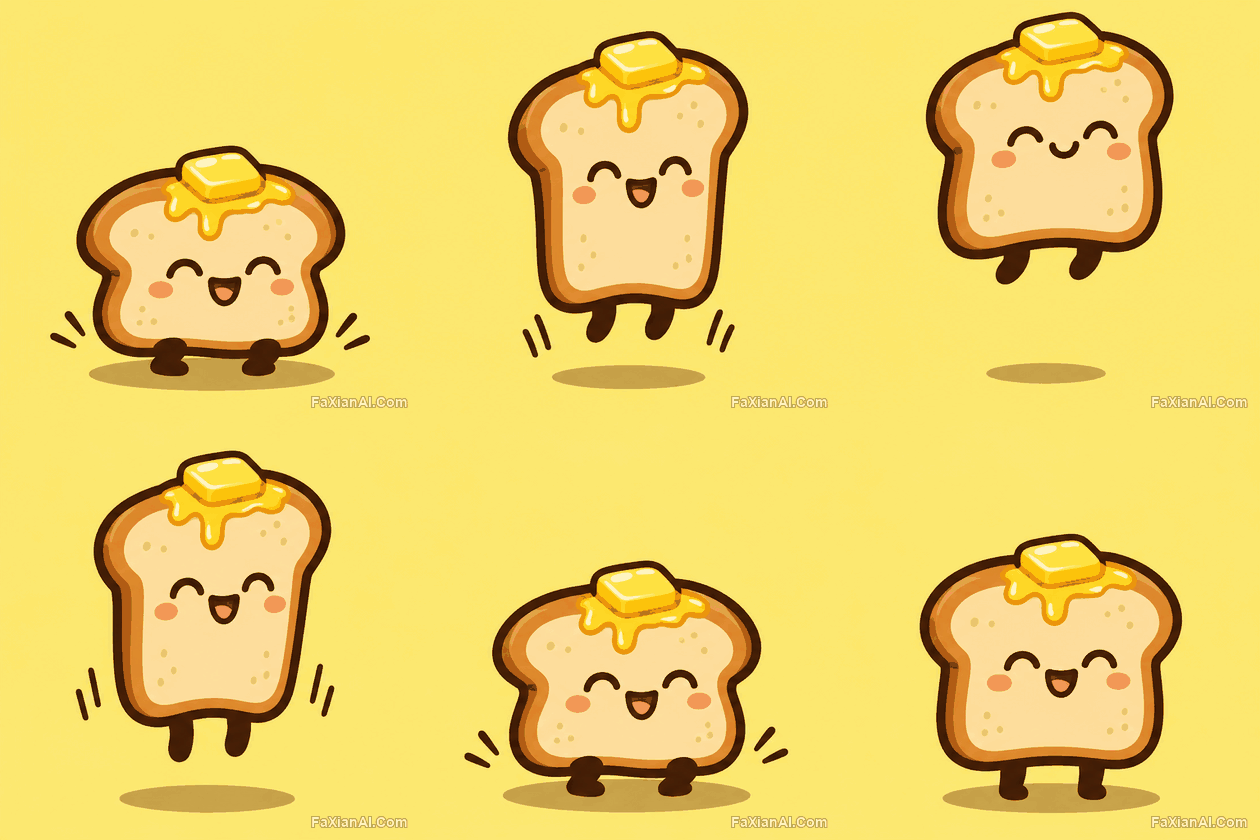
That’s how all the GIFs in this batch on our site were made. The prompt asks the model to draw a sprite sheet with 3 columns and 2 rows, one frame per cell, then a tool slices the sheet apart and assembles the frames. The six-panel image at the top is the original output.
The advantage is that you can inspect each frame and redraw it individually. The downside is that the cells are hard to align perfectly, so they often need registration in post-production, and you can’t use many frames. There’s an example on our site where the initial alignment was off; registration was needed to stabilize it. This is also why we don’t present these GIFs as native 2.6 animation results.
A sprite sheet is just a still image, so you don't have to wait for a GIF button. You can generate the six-cell sheet with GPT Image 2.6 on PixPix, then slice it once you like the result. Assembling the GIF is still up to your own tools, because that page doesn't offer animation.
Check Before Publishing
Review the GIF frame by frame. One common problem is that details like handles and fingers change shape between frames; text also tends to jitter. Be especially careful with realistic product turntables, and compare the handle on the celadon teapot.
GIFs support a maximum of 256 colors, so images with rich gradients can develop color banding and become large files. Solid backgrounds are the easiest to work with. If you’re putting a GIF on a web page, start with a flat-colored subject.
Find more examples in the GIF animation category, and see What’s New in Images 2.6 for an overview of the new features.