
How to Choose Between GPT Image 2.6 Flare and Sunburst and Set Complexity
The two model names are easy to remember: Flare is the fast one, and Sunburst is the detailed one. Both charge $30 per million image output tokens, so the choice comes down mainly to speed and results rather than the listed rate.
Choose Based on the Task
Need speed and lots of drafts? Flare. OpenAI says it can be as fast as about 6 seconds at low quality. Reports suggest it handles layout-focused work such as posters and product images well, making it a good fit for exploring an initial round of directions.
Ready to finalize or make repeated edits? Sunburst. OpenAI emphasizes its higher image quality and consistency during editing. According to reports, that advantage becomes noticeable at medium and high quality, so there’s little reason to compare it at low quality.
My approach is to get the layout and copy right with Flare first, then hand the chosen direction over to Sunburst. That’s just my workflow, not an official recommendation.
To feel the difference without writing code, the GPT Image 2.6 entry on PixPix offers both Flare and Sunburst, so you can run one prompt through each and compare. The page doesn't mention `complexity`, so you'll need the API to adjust that setting.
What Is Complexity?
This parameter is new in 2.6. It accepts low, medium, or high, defaults to high, and carries no additional charge. It controls how much planning the model does before generating an image. Rendering quality is controlled separately by `quality`; the two are not the same thing.
The official guide is clear: use low complexity for focused edits such as changing a background or a sign, and high complexity for dense text, intricate layouts, or scenes with many relationships between objects. It also warns that higher complexity can increase latency and introduce changes you didn’t want.
Examples from the site make the distinction easier to see:
| Scenario | Example | Suggested complexity |
| --- | --- | --- |
| Change one line of text | Change only the date on a poster | low |
| Change the color of one object | The vase inside the red circle | low |
| A layout with multiple layers of text | Bilingual Chinese-English menu card | high |
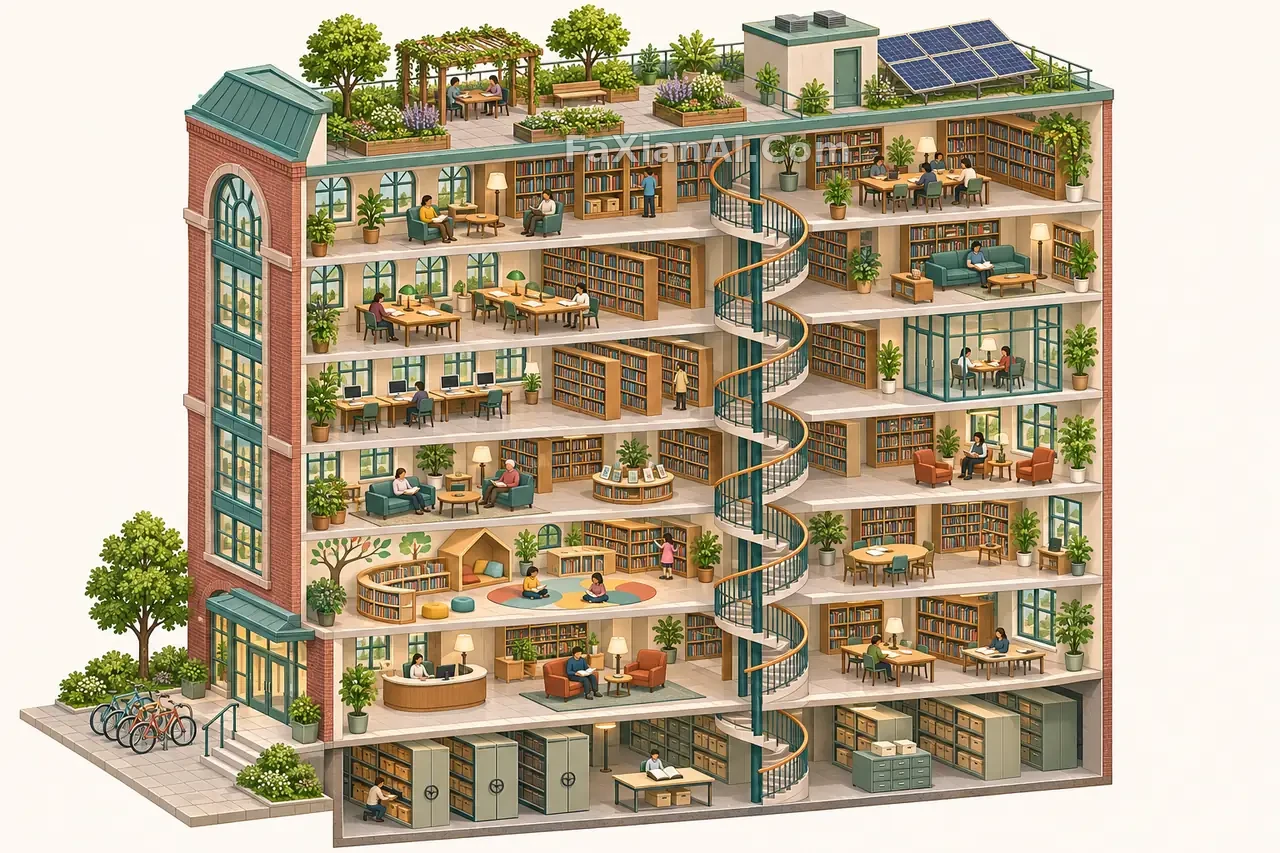
| Many objects and spatial relationships | Isometric library cutaway | high |
| A product image with a single subject | Moss-green insulated bottle | medium, then compare |
Note: This table follows the guidance in the official guide. These images were generated with Codex tools, which do not allow this parameter to be set manually.
Set Quality Explicitly, Too
In 2.6, `quality` supports low, medium, high, xhigh, max, and auto. The default is convenient, but it makes costs and reproducibility harder to control. I recommend explicitly setting both `quality` and `complexity` in every request.
OpenAI has not published a complete set of benchmark data either. One developer in the community tested the same prompt and found that, at medium quality, 2.6 used 1,136 output tokens versus 344 for 2.5, making it noticeably more expensive per image. The difference was small at the high-quality tier. It’s a tiny sample, but it’s enough to make one point: the same listed rate doesn’t necessarily mean the same cost per image.
Run a Comparison Before Migrating
1. Pick around 20 prompts you use regularly and run each one through both 2.5 and 2.6.
2. Record the output tokens, elapsed time, and whether each image needs rework.
3. Hold off on changing batch jobs for now. The 2.6 model page does not list Batch, while 2.5 Flare still qualifies for batch pricing.
4. For now, 2.6 has only a default snapshot. If your application depends on a fixed version, watch for changes.
For more approaches, visit the GPT Image 2.6 collection. Most of the previous generation’s techniques for materials and lighting still apply; you’ll find them in Writing Material and Lighting Prompts for GPT Image 2.5.