
AI Instructions for Removing Bystanders and Clutter: 10 Field-Tested remove objects from photo prompt Ideas
Why does an image always get someone asking "who's that in the background"? Nine times out of ten, it's a bystander that didn't get cleaned up properly. Lately, the most common question we get isn't about generating new images — it's about how to clean up unwanted things from a photo that's already been shot: bystanders, watermarks, stray wires on the ground, clutter on a table. The tools have long been good enough — the bottleneck is the prompt not being written right. With remove objects from photo prompt, eight out of ten people get it wrong on the first try.
Why a remove objects from photo prompt so often leaves traces
The most common mistake is writing just one line like "remove the person in the background" — the model will indeed execute the removal, but what fills in the empty space left behind, you never specified, so it guesses, and a wrong guess means a patch with mismatched color and broken texture — instantly fake. The wording that actually works needs to spell out the "fill logic" too: how the ground texture should continue after the removal, which light source the shadow direction should follow. Same idea as old photo restoration — worth comparing against the fill principles mentioned in Old Photo Restoration: Keeping the Grain Texture.
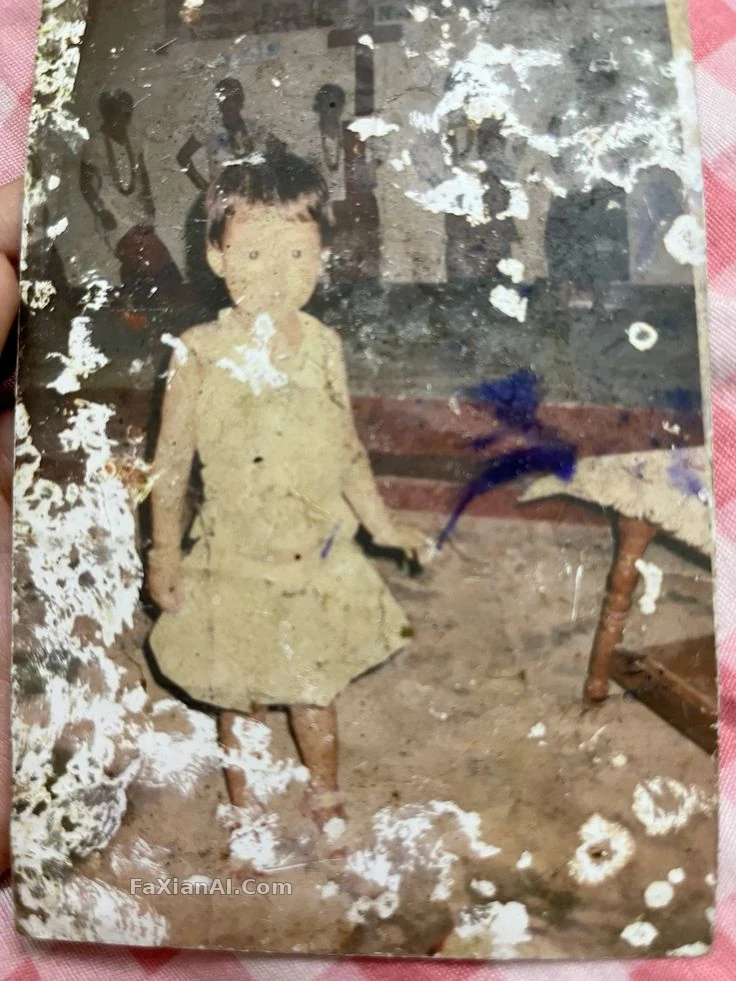
This is a scratch-repair example, and the logic is the same as removing clutter — what gets deleted isn't just the "dirty stuff" itself, the space it occupied needs to grow back naturally too. See the full prompt.
Below are a few prompts written for different scenarios — just swap in your own subject description and use them directly:
- Remove the passerby standing behind the bench on the right, rebuild the pavement texture and shadow direction to match the surrounding light, keep everything else pixel-identical.
- Erase the tourist crowd in the mid-ground behind the subject, extend the stone wall pattern naturally to fill the gap, do not alter the subject's pose or clothing.
- Remove the second person standing at the edge of the frame, do not crop the composition, extend the background instead of cutting the canvas.
- Erase the reflection of the photographer visible in the mirror, keep the mirror frame and surrounding wall color untouched.
Using chatgpt remove background objects for product shots and clutter
Cleaning up clutter in product shots and lifestyle photos follows the same underlying logic as removing bystanders, but the bar for "clean" is higher. With chatgpt remove background objects, even a slight color mismatch in the background gets called out. This matters especially for product images — if what's removed had a reflection or a cast shadow, the newly filled background needs matching lighting logic too, or the product ends up looking like it's floating in mid-air. Worth pairing with the prompt approach for e-commerce background swaps.
Pure white background shots have the lowest tolerance for "clean" — any leftover clutter is impossible to hide. See the full prompt.
- Delete the small logo watermark in the bottom-right corner, reconstruct the underlying fabric texture at that spot, keep color grading unchanged.
- Remove the cable and power strip visible on the studio floor, fill with matching floor material and consistent lighting falloff.
- Remove the price tag sticker and any visible barcode on the product packaging, reconstruct the packaging surface pattern seamlessly.
- Clean up the scattered paper clutter on the desk except the laptop and coffee cup, keep desk wood grain direction consistent after fill.
- Delete the birds in the sky and the utility pole on the left, keep the sky gradient and cloud shapes consistent with the rest of the frame.
remove people from photo ai prompt for crowds: batching beats doing it all at once
For scenes with a whole group of people, the most common mistake with a remove people from photo ai prompt is greed — trying to erase an entire crowd in one shot. The more people there are, the more the difficulty of filling in the background compounds, and if something goes wrong after removing too many at once, you have no way to tell which step caused it. The safer approach is to process in batches: remove the one or two closest and most noticeable people first, check how stable the result is, then keep going.
Batch processing isn't just for removing people — denoising and blur effects follow the same principle of doing things in order. See the full prompt.
- Remove all bystanders from the street scene one at a time, starting with the person closest to the subject, keep street lines and shadows continuous after each removal.
After finishing a batch removal of multiple people, remember to check back for shadow directions that might contradict each other — if two removed people originally had shadows pointing in different directions, the model can easily unify them into a single direction during the fill, which ends up giving the game away.
Here's another detail that's easy to overlook: if what's removed had its own shadow or reflection, deleting just the subject without addressing its shadow will still leave a giveaway. For example, remove a person but don't mention their shadow on the ground, and the model might leave the shadow in place, turning it into an eerie dark patch with no subject attached. Writing "handle the associated shadow and reflection together" into the prompt can save a lot of rework.
A quick summary of common failure points
- Saying only "remove it" without saying "how to fill it in" hands the fill logic entirely over to the model's guesswork — the highest-error approach
- For compound requests (removing bystanders and swapping the background at once), split into two steps — clean up first, then swap the background — a single-step error is much harder to trace
- Product shots demand a cleaner background, so after removal, double-check whether the shadows and reflections match the scene's light source
- If you want to handle both "remove bystanders" and "swap background" at once, start by referencing the background-replacement prompt writing approach and describe the two as separate steps
For more on general prompt-writing approaches, see the prompt structure formula — a removal-type request like this is really just adding a "fill description" segment to the structure. For more practical photo-editing content, check the homepage and browse the other categories.